How to Install and Run Ollama on Linux: Complete 2026 Guide
Master local AI on Linux with Ollama! This comprehensive guide shows you how to install, configure, and run LLMs easily, from setup to GPU acceleration. Unlock private AI.
Running a large language model (LLM) locally on Linux used to require a fair amount of technical work. Depending on the model and hardware, you might have had to deal with model formats, GPU drivers, CUDA or ROCm libraries, manual configuration and complicated inference tools.
Ollama makes the process much simpler.
With Ollama, you can install a local AI runtime, download an open-weight model and start chatting from the Linux terminal with just a few commands. It also supports GPU acceleration, a REST API, model management tools and background operation through systemd.
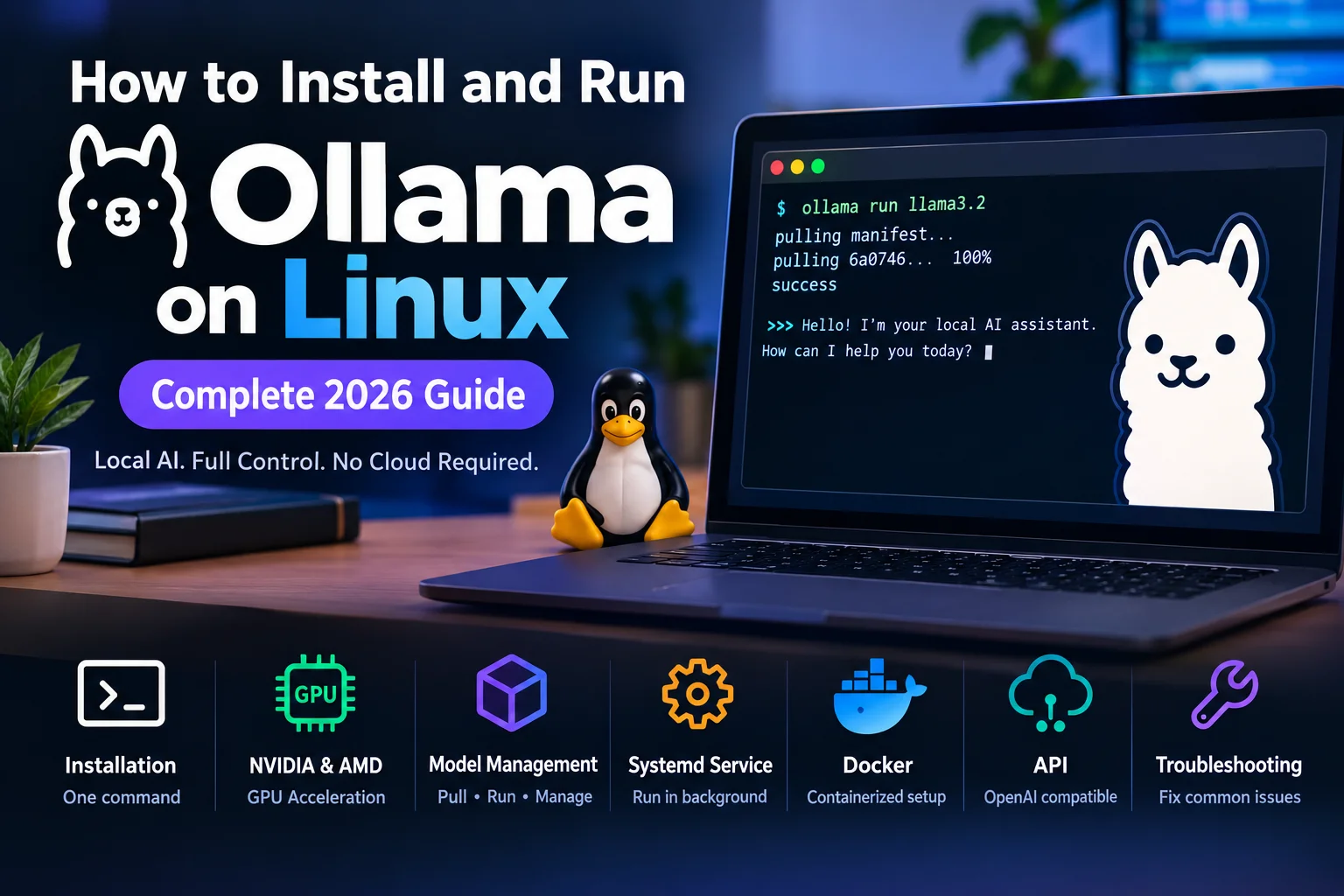
In this guide, we'll show you how to install Ollama on Linux, configure GPU acceleration, download and run AI models, manage the Ollama service, use the Ollama API, run Ollama with Docker and troubleshoot some of the most common problems.
Whether you're using Ubuntu, Debian, Fedora, Arch Linux, RHEL or another supported Linux distribution, this guide will help you get started with local AI.
What Is Ollama?
Ollama is a tool for running and managing large language models locally on your computer or server.
Instead of sending every prompt to a cloud-based AI service, Ollama allows you to download compatible models and run inference on your own hardware.
This can be useful for:
Private AI chat
Local coding assistants
AI development and testing
Retrieval-Augmented Generation (RAG)
Document analysis
Local automation
Experimenting with open-weight LLMs
Building applications that use a local AI API
Ollama is available for Linux, macOS and Windows, with Linux being a particularly popular platform for local AI servers and GPU-based workloads.
Why Use Ollama on Linux?
One of Ollama's biggest advantages is simplicity.
You don't normally need to manually download model files or configure a complex inference stack. Ollama handles model management through a straightforward command-line interface.
Some of its useful features include:
Simple command-line model installation
Local model execution
NVIDIA GPU acceleration
AMD GPU support through ROCm
Vulkan support on supported hardware
Model download and management commands
REST API access
OpenAI-compatible API support
systemd service integration on Linux
Docker support
Local data processing
If your goal is to run AI models locally on Linux, Ollama is one of the easiest places to start.
System Requirements for Ollama on Linux
The hardware you need depends heavily on the size of the model you want to run.
Basic Requirements
For CPU-based local AI, a reasonable starting point is:
64-bit Linux
Modern x86_64 or ARM64 processor
At least 8 GB of RAM
At least 10 GB of available storage for a basic setup
However, larger models can require significantly more RAM and storage.
Recommended Hardware
For a more comfortable experience, consider:
16 GB or more RAM
NVIDIA or AMD GPU where supported
8 GB or more VRAM for smaller and medium-sized GPU-accelerated models
Fast SSD storage
Additional disk space for multiple models
The exact requirements vary by model, quantization, context size and whether the workload runs entirely on the GPU or uses CPU offloading.
How Much VRAM Does Ollama Need?
There is no single VRAM requirement for Ollama because different models have different memory requirements.
As a rough starting point for quantized models:
1B–3B models: around 2–3 GB of VRAM
7B–8B models: around 5–6 GB
13B–14B models: around 9–10 GB
27B–35B models: around 16–22 GB
70B+ models: typically require substantially more memory or CPU offloading
These are estimates rather than strict requirements. Context length, quantization and model architecture can significantly change actual memory usage.
How to Install Ollama on Linux
The easiest way to install Ollama on Linux is to use the official installation script.
Open a terminal and run:
curl -fsSL https://ollama.com/install.sh | sh
The installer handles the main installation process and sets up Ollama for use on Linux.
After installation, check that Ollama is available:
ollama --version
You can also check the systemd service:
systemctl status ollama
If the service is running correctly, you should see a status similar to:
active (running)
Should You Inspect the Ollama Installation Script First?
If you're installing software on a production server or simply prefer to know exactly what you're running, you can download the script and inspect it before executing it.
curl -fsSL https://ollama.com/install.sh -o /tmp/ollama-install.sh
Then inspect it:
less /tmp/ollama-install.sh
If everything looks good, run:
sh /tmp/ollama-install.sh
This is a good practice when installing software through a remote shell script.
Installing Ollama Manually on Linux
Advanced Linux users may prefer a manual installation instead of the automated installer.
Ollama provides architecture-specific packages, including Linux builds for common CPU architectures.
For example, an AMD64 installation can use:
curl -fsSL https://ollama.com/download/ollama-linux-amd64.tar.zst | sudo tar x -C /usr
For ARM64 systems:
curl -fsSL https://ollama.com/download/ollama-linux-arm64.tar.zst | sudo tar x -C /usr
AMD GPU users may also need the appropriate ROCm package depending on their hardware and installation method.
For most users, however, the official Ollama installer is the simpler option.
How to Install and Configure Ollama for NVIDIA GPUs
If you have an NVIDIA GPU, Ollama can use it to accelerate model inference.
Before troubleshooting Ollama itself, make sure your NVIDIA drivers are correctly installed.
Run:
nvidia-smi
If the command displays your GPU, driver version and related information, the NVIDIA driver is generally being detected correctly.
After installing Ollama, start a model:
ollama run llama3.2
Then check the running model:
ollama ps
Depending on your setup and Ollama version, the output can help you determine whether the model is using GPU acceleration.
NVIDIA Driver Requirements
GPU support depends on your specific NVIDIA hardware, driver version and current Ollama support.
Because GPU compatibility changes over time, it is best to check Ollama's current GPU documentation and NVIDIA's documentation before installing or upgrading drivers.
How to Use Ollama with AMD GPUs
Ollama also supports compatible AMD GPUs on Linux through ROCm, with additional support available through Vulkan on supported hardware.
Before configuring Ollama, install the appropriate AMD graphics drivers and ROCm components for your distribution and GPU.
Once configured, Ollama should be able to detect compatible hardware automatically.
For troubleshooting or unsupported configurations, Ollama's current GPU documentation should be your first reference because supported GPUs and software requirements can change between releases.
How to Run Your First AI Model with Ollama
Once Ollama is installed, running your first local AI model is straightforward.
For example:
ollama run llama3.2
If the model isn't already installed, Ollama downloads it and then opens an interactive chat session.
You can now enter a prompt directly in your terminal.
For example:
>>> Explain how a reverse proxy works.
That's it. You are now running an LLM locally on Linux.
Useful Ollama Commands
Ollama provides a simple command-line interface for downloading, running and managing models.
Download a model
ollama pull llama3.2
Run a model
ollama run llama3.2
Run a specific model size
ollama run llama3.2:3b
List installed models
ollama ls
See currently running models
ollama ps
Display model information
ollama show llama3.2
Stop a running model
ollama stop llama3.2
Delete a model
ollama rm llama3.2
Ask a one-time question
ollama run llama3.2 "Explain what a reverse proxy does in one sentence"
These commands cover most basic Ollama model management tasks.
How to Run Ollama as a Linux Systemd Service
When installed normally on Linux, Ollama can run as a background service using systemd.
Check its current status:
sudo systemctl status ollama
Start the service:
sudo systemctl start ollama
Restart it:
sudo systemctl restart ollama
Stop it:
sudo systemctl stop ollama
Enable automatic startup:
sudo systemctl enable ollama
You can also combine enabling and starting:
sudo systemctl enable --now ollama
View Ollama Logs
If Ollama isn't starting correctly, systemd logs are one of the first places to look:
journalctl -u ollama
For recent logs:
journalctl -e -u ollama
To follow the logs in real time:
journalctl -u ollama -f
How to Change Ollama's Configuration
By default, Ollama typically listens locally on:
127.0.0.1:11434
This means applications running on the same machine can communicate with Ollama without exposing the API to your network.
If you need Ollama to accept connections from other machines, you can configure the OLLAMA_HOST environment variable.
Edit the service override:
sudo systemctl edit ollama
Add:
[Service]
Environment="OLLAMA_HOST=0.0.0.0:11434"
You can also configure other settings depending on your requirements.
For example:
[Service]
Environment="OLLAMA_HOST=0.0.0.0:11434"
Environment="OLLAMA_MODELS=/data/ollama/models"
Environment="OLLAMA_KEEP_ALIVE=30m"
After changing the configuration, reload systemd and restart Ollama:
sudo systemctl daemon-reload
sudo systemctl restart ollama
Moving Ollama Models to Another Drive
Large language models can consume a significant amount of disk space.
If your system drive is getting full, you can store models on a separate SSD or larger storage volume.
For example:
Environment="OLLAMA_MODELS=/data/ollama/models"
Make sure the Ollama service account has permission to access the directory:
sudo chown -R ollama:ollama /data/ollama/models
The exact default model location can vary depending on how Ollama was installed and which user is running the service, so verify your environment before moving existing models.
Important Security Note About OLLAMA_HOST
Be careful when changing Ollama from a local-only address to:
0.0.0.0:11434
This can make the Ollama API accessible over your network.
Do not expose the Ollama API directly to the public internet without appropriate security controls.
If remote access is necessary, consider using a firewall, VPN, reverse proxy, authentication layer or other appropriate network controls.
Running Ollama with Docker on Linux
Docker is another convenient way to run Ollama, especially if you're building a containerized local AI environment.
Run Ollama with Docker
For CPU-based workloads:
docker run -d \
  -v ollama:/root/.ollama \
  -p 11434:11434 \
  --name ollama \
  ollama/ollama
For NVIDIA GPU acceleration:
docker run -d \
  --gpus=all \
  -v ollama:/root/.ollama \
  -p 11434:11434 \
  --name ollama \
  ollama/ollama
NVIDIA GPU support requires the appropriate NVIDIA Container Toolkit configuration.
For supported AMD ROCm hardware, Ollama also provides a ROCm container image and device configuration.
Docker can be particularly useful if you want to integrate Ollama into a larger application stack.
Best Ollama Models to Try in 2026
The best Ollama model depends on your hardware and what you want to accomplish.
Some popular model families include:
General AI Chat
For everyday conversations, writing, summarization and general-purpose tasks, consider models such as:
Llama
Qwen
Gemma
Mistral
Coding
For local programming assistance, look at:
Qwen Coder models
Qwen3-Coder
DeepSeek Coder variants
Other coding-focused models available through the Ollama library
Reasoning
For reasoning-heavy workloads, models such as DeepSeek-R1 and other reasoning-focused models may be worth testing.
Small and Fast Models
If your computer has limited RAM or VRAM, smaller models are a good starting point.
For example:
ollama run llama3.2:1b
or:
ollama run llama3.2:3b
Smaller models generally require less memory and can respond faster, although they may be less capable than larger models.
Embedding Models
If you're building a RAG application or semantic search system, embedding models such as nomic-embed-text can be useful.
Always check the current Ollama model library for available model names, tags, sizes and requirements before choosing a model.
How to Use the Ollama API
One of Ollama's most useful features for developers is its local API.
By default, the API is available at:
http://localhost:11434
You can test the chat API with:
curl http://localhost:11434/api/chat -d '{
  "model": "llama3.2",
  "messages": [
    {
      "role": "user",
      "content": "Why is the sky blue?"
    }
  ],
  "stream": false
}'
This makes it possible to build applications that communicate with a locally running AI model.
You can use Ollama as the local AI engine behind:
Chat applications
Coding tools
RAG systems
Document-processing applications
Internal business tools
AI automation workflows
Experimental AI projects
Using Ollama with Python
Python developers can install the Ollama Python library with:
pip install ollama
A basic example looks like this:
from ollama import chat

response = chat(
    model='llama3.2',
    messages=[
        {
            'role': 'user',
            'content': 'Explain how DNS works.'
        }
    ]
)

print(response['message']['content'])
This gives developers a simple way to integrate locally hosted AI models into Python applications.
How to Update Ollama on Linux
If you installed Ollama using the official installation script, you can generally update it by running the installer again:
curl -fsSL https://ollama.com/install.sh | sh
After updating, verify the installed version:
ollama --version
If you're running Ollama as a systemd service, you can also check that it restarted correctly:
systemctl status ollama
How to Uninstall Ollama from Linux
If you decide that you no longer need Ollama, stop the service first:
sudo systemctl stop ollama
Disable it:
sudo systemctl disable ollama
Then remove the service and installation files according to your installation method.
Before deleting Ollama's model directory, remember that doing so will remove your downloaded models and can free a substantial amount of disk space.
If you want to completely remove your local models as well, identify the model directory used by your installation and remove it after confirming that you no longer need the files.
Common Ollama Problems and How to Fix Them
Ollama Is Not Using My GPU
First, verify that your GPU driver is working.
For NVIDIA:
nvidia-smi
Then check running models:
ollama ps
If GPU acceleration isn't working, check your driver version, hardware compatibility and Ollama's current GPU requirements.
Ollama Service Will Not Start
Check the service:
systemctl status ollama
Then inspect the logs:
journalctl -u ollama -e
Look for permission errors, missing libraries, invalid configuration values or GPU-related errors.
Ollama Cannot Find My Models
If you have configured a custom model directory, check the OLLAMA_MODELS value and make sure the directory exists.
Also check ownership:
sudo chown -R ollama:ollama /data/ollama/models
I Cannot Connect to Ollama From Another Computer
If Ollama is only listening on:
127.0.0.1:11434
other devices will not normally be able to connect to it.
You may need to configure:
Environment="OLLAMA_HOST=0.0.0.0:11434"
and then restart the service.
Remember to configure your firewall appropriately and avoid exposing an unauthenticated AI API directly to the public internet.
Ollama Is Running Slowly
Slow performance can have several causes:
The model is too large for your available RAM or VRAM.
GPU acceleration is not working.
The context window is large.
CPU inference is being used instead of GPU acceleration.
Your system is running out of memory.
The model's quantization is not appropriate for your hardware.
Try a smaller model first and compare performance.
For example:
ollama run llama3.2:3b
If the smaller model runs significantly faster, your hardware may simply be better suited to smaller models.
Ollama vs Cloud AI Services
One of the main reasons people choose Ollama is local AI.
With a cloud AI service, prompts and files may need to be sent to a remote provider. With Ollama, the model can run directly on your own hardware.
That can make local AI attractive for:
Privacy-sensitive workflows
Offline experimentation
Internal development
Local document processing
Reducing dependence on API providers
Testing open-weight models
However, local AI also has limitations.
Running a large model yourself requires sufficient hardware, storage, electricity and maintenance. Cloud models can provide access to extremely large systems without requiring users to own powerful GPUs.
For many people, the best approach may be a combination of local and cloud AI.
Frequently Asked Questions About Ollama on Linux
Can Ollama run on Linux?
Yes. Ollama supports Linux and can run local large language models using CPU or supported GPU hardware.
How do I install Ollama on Ubuntu?
The simplest method is to open Terminal and run:
curl -fsSL https://ollama.com/install.sh | sh
After installation, verify it with:
ollama --version
Does Ollama support NVIDIA GPUs?
Yes. Ollama supports compatible NVIDIA GPUs on Linux. Correct NVIDIA drivers must be installed for GPU acceleration to work properly.
Does Ollama support AMD GPUs?
Yes. Compatible AMD GPUs can use ROCm on Linux, while Vulkan provides another supported path on compatible hardware.
Can I run Ollama without a GPU?
Yes. Ollama can run models using your CPU, although performance will generally be slower than with suitable GPU acceleration.
What port does Ollama use?
Ollama's local API normally uses port 11434.
Where does Ollama store models?
The model location depends on the installation and service configuration. You can configure a custom location with the OLLAMA_MODELS environment variable.
Is Ollama free?
Ollama itself is available as a local tool, while the models you run through it have their own licenses and usage terms. Always check the license of a model before using it commercially.
Can I use Ollama for RAG?
Yes. Ollama can be used as part of a Retrieval-Augmented Generation (RAG) application, including workflows that combine local language models with embedding models and a vector database.
Final Thoughts
Ollama has made running local AI models on Linux considerably easier.
Instead of building a complicated inference environment from scratch, you can install Ollama, download a model and start experimenting from the command line.
Its combination of simple model management, GPU acceleration, systemd integration, Docker support and a local API makes it useful for everyone from Linux enthusiasts experimenting with AI to developers building local AI applications.
If you're new to local LLMs, don't start with the biggest model you can find.
Install Ollama, try a smaller model such as:
ollama run llama3.2:3b
and see how it performs on your hardware.
Once you've got the basics working, you can experiment with larger models, GPU acceleration, RAG applications, Python integrations and AI agents.
The biggest advantage of local AI isn't simply that you can run an LLM without a cloud service. It's that you control the hardware, the models and the data.
Useful Ollama Resources
Official Ollama website: https://ollama.com/
Ollama Linux documentation: https://docs.ollama.com/linux
Ollama GPU documentation: https://docs.ollama.com/gpu
Ollama model library: https://ollama.com/library
Ollama GitHub repository: https://github.com/ollama/ollama